
How to Fix Google Chrome Memory Hogging
your quick chrome memory hog fix guide to free up RAM instantly
It is a frustratingly familiar scenario: you have 20 tabs open, you are in the middle of a workflow, and suddenly your system starts lagging. Your laptop fans spin at full speed, web pages load slowly, and other applications crash. Opening your system Activity Monitor reveals the culprit: Google Chrome is using 8GB or more of RAM.
This tutorial provides a complete chrome memory hog fix to stop background tabs and extension helper processes from eating your system memory, giving you back a fast computer.
“Chrome's process-per-tab architecture isolates crashes, but it turns every background page into a potential RAM leak. Finding a reliable fix is essential for browser performance.”
Step 1: Identify Memory-Hogging Tasks with Chrome Task Manager
To fix the issue, you must first pinpoint which tab or extension is consuming the most RAM. Chrome includes its own internal Task Manager that reveals process-level memory consumption:
- Open Chrome and click the three-dot menu icon in the top right.
- Select More Tools → Task Manager (or press Shift + Esc on Windows / select Window → Task Manager on macOS).
- Sort the list by Memory Footprint by clicking the column header.
- Identify the tabs or extensions using more than 200MB. Select them and click End Process to free that memory immediately.
Step 2: Enable Chrome's Native Memory Saver
Chrome contains a native performance feature designed to manage inactive background tabs:
- Go to Chrome Settings → Performance.
- Toggle on Memory Saver.
This forces Chrome to free memory from tabs you haven't opened in a while. While helpful, this native tool only triggers reactively when your total system memory is under heavy pressure, meaning your computer is already slow before it kicks in.
Step 3: The Complete Proactive Fix — Tabnxt Tab Suspension
For a permanent, proactive fix, install a dedicated Manifest V3 tab manager like Tabnxt. Instead of waiting for the browser to run out of RAM, Tabnxt monitors your tabs and suspends them automatically before they bog down your machine.
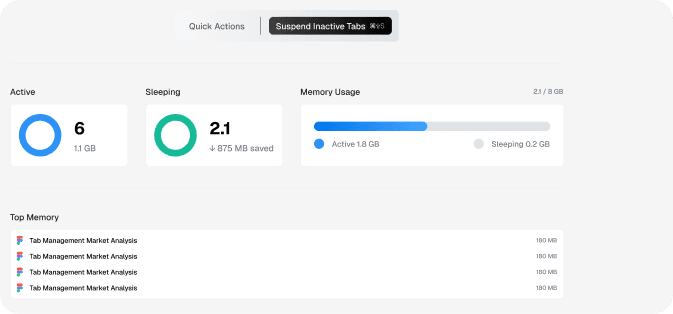
The Tabnxt memory dashboard gives you visual control over Chrome memory hogs, letting you suspend them with a keyboard shortcut.
How Tabnxt Solves the Memory Hogging Problem:
- Auto-Suspension: Automatically freeze idle tabs after 5, 10, or 30 minutes of inactivity. Suspended tabs consume 0% CPU and 95% less RAM while remaining visible in your tab bar.
- Real-Time RAM Dashboard: Get a clear, visual list of all open tabs sorted by memory usage directly in your sidebar.
- Smart Whitelisting: Prevent critical tabs (e.g. music players, document editors) from sleeping.
By using Tabnxt's local suspension loops, you keep your workspace intact while keeping RAM usage low. Check out our guide on how to reduce Chrome RAM usage for a deeper look at browser process optimization.
Conclusion: Keep Your Browser Fast
You don't need to close all your tabs to stop Chrome from hogging memory. By tracking down leaks using Chrome's Task Manager, keeping native Memory Saver toggled on, and deploying Tabnxt for automated MV3 tab suspension, you can keep hundreds of tabs open without slowing down your computer.