
Too Many Tabs Chrome Fix
how to escape tab chaos without losing your open links and research
It starts with one search query. Then you open a couple of related links in new tabs. An hour later, your browser bar is so crowded that you can no longer read the page titles or even see the site favicons. All you see is a dense row of tiny, identical slivers. Your computer starts lagging, your battery percentage drops, and you feel a rising sense of stress just looking at your screen.
You have too many tabs open, but you can't bring yourself to close them because you might need that research later. Fortunately, you don't have to choose between a clean browser and losing your links. Here are 5 quick ways to fix tab overload in Google Chrome. First, make sure you understand the memory implications and know how to reduce Chrome RAM dynamically so your operating system doesn't freeze.
“Closing tabs feels like throwing away work. Instead of deleting your history, you need a way to store it dynamically outside your active working memory.”
Fix 1: Leverage Chrome's Native Tab Groups
Google Chrome has a built-in "Tab Groups" feature. Right-click any tab, select Add tab to new group, and give it a name and color. You can collapse the group by clicking its name, hiding the tabs from your active view. While helpful, this does not release the system memory (RAM) consumed by those tabs, meaning your computer will still run slow if you have 40+ tabs grouped but active. To truly declutter browser tabs, users turn to extensions that allow them to save browser sessions completely, removing them from active RAM entirely.
Fix 2: Use a Dedicated Tab Suspension Tool
If you must keep tabs open, freeze their processes. Tab suspension extensions let you keep the visual tab in your bar while unloading its background memory load. When you click back onto the tab, it reloads instantly. This keeps your browser fast, even if you hoarde tabs. This is a critical browser overload fix that keeps your machine running cool.
Fix 3: Save Entire Windows as Workspaces
The ultimate fix is dividing your tabs by project. Instead of having work, school, and hobbies in one window, save each project as a "Workspace". When you switch to a workspace, all current tabs are tucked away safely, and only the tabs for that project appear. This keeps your view focused and clean. You can compare workspace styles in our review of Tabnxt vs Toby to see if a sidebar drawer or a new tab dashboard fits your flow better.
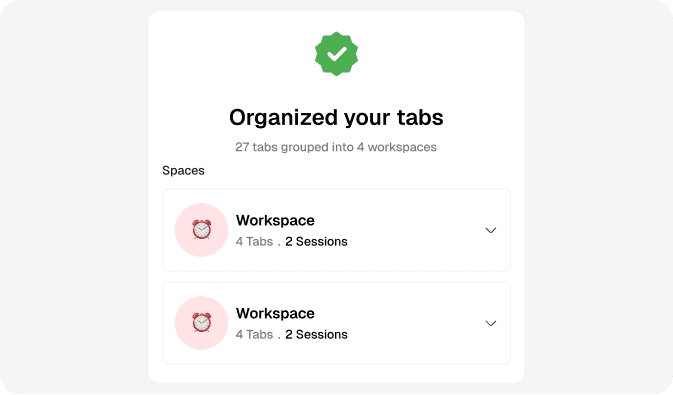
Tabnxt automatically cleans up tab clutter by grouping related pages with advanced artificial intelligence.
Fix 4: Let AI Group Your Tabs Instantly
Manually organizing 40 tabs into groups takes time. Tabnxt solves this by using local, lightweight AI models to sort your tabs automatically in seconds. It is the ultimate tab grouping extension for Chrome power users.
- Trigger the Grouping: Click the Tabnxt extension icon or press ⌘ + 9G.
- AI Analysis: Tabnxt parses the titles and meta-data of all your open tabs, categorizing them by theme (e.g., "Developer Documentation", "Productivity Blogs", "Shopping Checkout").
- Organized Clean-up: In 3 seconds, all 40 tabs are organized into neat, color-coded, labeled tab groups. Inactive groups are automatically collapsed to restore focus to your workspace.
Fix 5: Snooze Non-Urgent Tabs
If a tab is just a reminder for later (like a booking confirmation or an article to read tonight), snooze it. You can snooze Chrome tabs easily using Tabnxt. The tab disappears instantly, freeing RAM and visual space, and reopens on its own at the exact hour you scheduled. It's the ultimate tool for keeping a clean tab bar.
Summary: Keep it Simple
Don't let tab hoard behavior slow down your productivity. By using a combination of workspaces, AI grouping, and smart tab suspension, you can keep hundreds of tabs safe and searchable without letting them clutter your screen or exhaust your computer's memory. Reclaim your screen real estate and browse with speed.