How to Reduce Chrome RAM Usage in 2026
your computer doesn't need more RAM, your browser just needs a better system
Google Chrome is notorious for its voracious appetite for system memory. In 2026, as modern web applications become increasingly complex and resource-heavy, a single browser tab running Figma, Notion, or Slack can easily chew through 500MB to 1.5GB of RAM. If you keep dozens of tabs open simultaneously, it's not uncommon to see Chrome devouring 8GB to 16GB of your computer's memory. This leads to sluggish system performance, spinning laptop fans, and battery depletion.
Under Google Chrome's native architecture, each tab is treated as an isolated, sandboxed process. This design guarantees that if one tab crashes, it won't crash your entire browser. However, this process isolation comes at a massive cost: duplicate resources, high system overhead, and severe RAM consumption. When you have a too many tabs Chrome fix scenario, finding which tab is draining your resources is critical.
“Chrome runs every single tab as its own private computer inside your machine. If you don't control which tabs are active, Chrome will quickly drown your operating system in memory demands.”
1. Enable Chrome's Built-in Memory Saver
Chrome includes a native performance utility called "Memory Saver" (found under Chrome Settings → Performance). When active, Memory Saver automatically frees up memory from inactive tabs after a period of idle time. While this is a step in the right direction, it operates reactively. Chrome will wait until your system is actively struggling under memory pressure before it begins suspending tabs, which means your computer is already slow by the time Chrome intervenes. For a more robust solution, users often compare tools like Tabnxt vs OneTab or Tabnxt vs Workona to see how active memory cleaners outperform the native defaults.
2. The Proactive Solution: Tab Suspension
Instead of waiting for Chrome to react to a system slowdown, you should use active tab suspension. By temporarily freezing the processes of tabs you aren't currently reading, you can reclaim up to 95% of the memory they consume. When you click back onto a suspended tab, it instantly wakes up right where you left it. This is particularly useful when you need to snooze Chrome tabs that you don't need until later in the week.
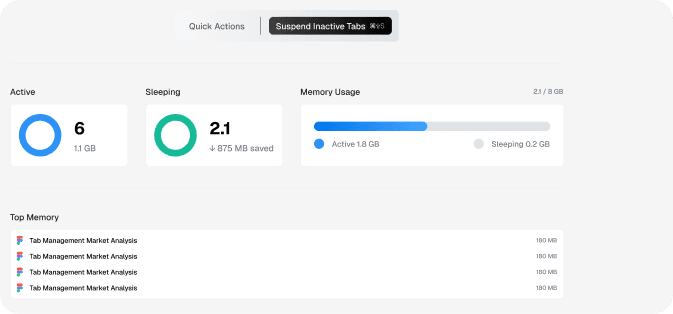
Tabnxt's Memory Dashboard shows real-time RAM usage per tab, letting you suspend memory hogs with a single click.
How to Suspend Tabs Instantly with Tabnxt
Tabnxt takes tab suspension to the next level by giving you a real-time Memory Dashboard that displays exactly how many megabytes of RAM each tab is using. It helps prevent a major browser overload fix, letting you manage your workspace cleanly.
- Identify the Hogs: Open the Tabnxt sidebar or dashboard and click on the Memory tab. Here, you'll see a list of all open tabs sorted by their actual RAM usage. Figma, Notion, YouTube, and Google Meet will usually top this list.
- Manual One-Click Freeze: Click ⌘ + 9S (or click "Suspend Inactive Tabs" in the dashboard) to instantly freeze all background tabs. Their page processes will be terminated, freeing up RAM, while the tab remains visible in your browser.
- Enable Auto-Suspend (Pro): In Tabnxt Settings, customize your automatic suspension rules. You can configure Tabnxt to automatically freeze any tab that has been inactive for more than 10 minutes, ensuring your RAM stays clean automatically.
- Whitelist Critical Tabs: Have a tab that plays music or runs a live build? Add it to your Whitelist so it never gets suspended in the background.
3. Advanced Tricks to Stop Chrome Memory Leaks
Sometimes, Chrome's memory bloat isn't just because of open tabs, but because of underlying memory leaks in extensions or web scripts. Here is how to track them down:
- Use Chrome's Task Manager: Press Shift + Esc (on Windows) or go to Window → Task Manager (on Mac). This lists every extension and tab process. If an extension is consuming more than 150MB of RAM while idle, it likely has a memory leak. You should disable it and look for lighter alternatives.
- Keep Your Extensions Lightweight: Legacy Manifest V2 extensions run persistent background pages that never unload from memory. By replacing them with Manifest V3 extensions like Tabnxt, which use event-driven service workers that sleep when not in use, you save valuable background RAM.
- Avoid Tab Overload by Saving Sessions: Instead of keeping tabs open as placeholders, you should save browser sessions and close the tabs. This clears the RAM completely but preserves your work for later.
The Results: Chrome RAM Reduced from 6GB to 800MB
By suspending background tabs instead of closing them, you preserve your workspace while freeing up valuable system memory. Users running Tabnxt report average RAM savings of over 80% — allowing them to keep hundreds of tabs organized in custom workspaces without sacrificing their machine's performance. For further optimization, consider exploring the AI tab manager guide 2026 to see how smart clustering helps group and suspend idle pages automatically.