How to Snooze Chrome Tabs
the simple psychological trick to ending tab overload forever
Do you keep dozens of tabs open simply because they are reminders of things you need to do later? A ticket for a concert next Friday, a recipe you want to cook this weekend, or a spreadsheet you need to review on Monday morning. Leaving these tabs open doesn't just devour your computer's RAM — it creates a constant source of visual clutter and cognitive load, a phenomenon psychologists call "tab anxiety". If you struggle with this, you probably have too many tabs open in Chrome right now, slowing your system down.
Every time you look at your crowded tab bar, your brain has to process all those open items, distracting you from what you are working on *right now*. The solution is tab snoozing: temporarily hiding a tab and scheduling it to reappear automatically when you actually need it. This simple habit helps reduce Chrome RAM usage significantly by unloading background processes.
“An open tab is an uncompleted task shouting for your attention. Snoozing a tab is like putting a letter in a mailbox that only delivers itself on the day you need to read it.”
1. The Benefits of Snoozing vs. Bookmarking
Why not just bookmark the page? Because bookmarks are passive. Once a page is bookmarked, it is sent to a folder where it is usually forgotten. Snoozing, on the other hand, is active. It removes the tab from your screen immediately, giving you instant relief, but guarantees that the tab will pop back open on its own at the specified date and time. It functions as a smart, temporary tab closer that keeps your visual field focused. For more comparisons, check out how Tabnxt ranks as one of the best OneTab alternatives for dynamic workspace management.
2. How to Set Up Tab Snoozing in Chrome
While Chrome doesn't have a native tab snooze button, you can add this feature easily via extensions. Tabnxt integrates a premium, easy-to-use snooze scheduler directly into your browsing flow, complete with keyboard shortcuts, allowing you to quickly clear away distractions and save browser sessions safely.
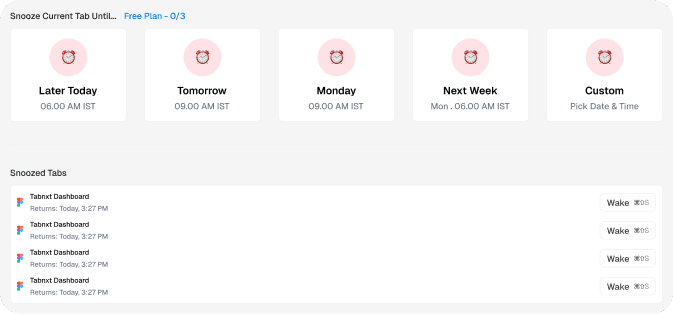
Tabnxt's snooze menu lets you schedule tabs to return later today, tomorrow, next week, or at a custom date.
How to Snooze a Tab in 3 Steps
- Open the Snooze Menu: While viewing the tab you want to snooze, click the Tabnxt extension icon or press the shortcut ⌥ + S.
- Choose a Return Time: Select one of the quick-scheduler presets:
- Later Today: Reopens in 3 hours.
- Tomorrow: Reopens at 9:00 AM.
- This Weekend: Reopens Saturday morning.
- Next Week: Reopens Monday morning.
- Custom Date: Pick an exact date and hour (ideal for flight bookings or event tickets).
- Let it Go: Click confirm. The tab will vanish instantly. Behind the scenes, Tabnxt releases all memory associated with the page. At the exact hour you chose, the tab will slide back into your browser window automatically.
3. Psychological Benefits of Decluttered Browsing
Tab hoarding is often linked to the "Zeigarnik Effect," a psychological phenomenon stating that humans remember uncompleted or interrupted tasks better than completed ones. An open tab represents an uncompleted loop in your mind. By using a tab snoozer extension, you close that loop in your active working memory, trusting the system to bring it back when it becomes relevant. This reduces browser-induced cognitive load, prevents screen fatigue, and helps you achieve a state of deep focus. Rather than staring at 50 microscopic icons, you can focus on the 3 or 4 pages that actually relate to your active project.
Managing Your Snoozed Tabs
Need to access a snoozed tab early? Tabnxt includes a Snoozed Tabs folder in the sidebar where you can view a list of all your scheduled tabs, adjust their return times, or wake them up instantly with a single click. This guarantees you maintain complete visibility over your workflow without the clutter.