
How to Save Browser Sessions in Chrome
stop losing your work to system crashes and accidental browser window closes
We've all been there: you are researching a project, planning a trip, or writing a paper, and you have 25 tabs open. Suddenly, your computer restarts for an automatic update, or you accidentally close the browser window. While Chrome has a native "Continue where you left off" setting and a "Reopen closed tab" option, these features are notoriously unreliable. If Chrome crashes repeatedly, or if you open another window before restoring, your original session can easily be lost forever. If you are also struggling with a high memory load, knowing how to reduce Chrome RAM is crucial to keep your browser stable and prevent these crashes from happening in the first place.
To avoid this, you need a dedicated session manager that acts as an insurance policy for your tabs, allowing you to manually or automatically save your browser sessions as workspaces that persist indefinitely. This is especially true for users looking to replace buggy plugins, who often search for modern Tabnxt vs Session Buddy comparisons to check data stability.
“Native Chrome session restore is a temporary buffer. A real session manager turns your active tabs into a permanent database that you can backup, search, and recall from any device.”
1. Why Chrome's Built-in History Isn't Enough
Chrome's native History tool simply records a linear timeline of the URLs you visited. It doesn't preserve the "state" of your window: which tabs were grouped together, what order they were in, or which workspace they belonged to. Furthermore, if you close a window with multiple tabs and then close another single-tab window, the multi-tab window gets buried in the history, making it incredibly tedious to restore manually. Modern productivity professionals rely on extensions that support free Workona alternatives to save their workspaces in an organized manner.
2. Organize Your Browser into Workspaces
The key to productive browsing is separating your tabs by context. Keeping work tabs, shopping tabs, and social media tabs in the same window leads to cognitive overload and clutter. Instead, you should organize your sessions into designated "Workspaces" (or "Spaces"). When you switch workspaces, your current tabs are automatically saved and closed, and the new workspace's tabs are restored instantly. This also helps with too many tabs Chrome fix problems by segmenting project tasks.
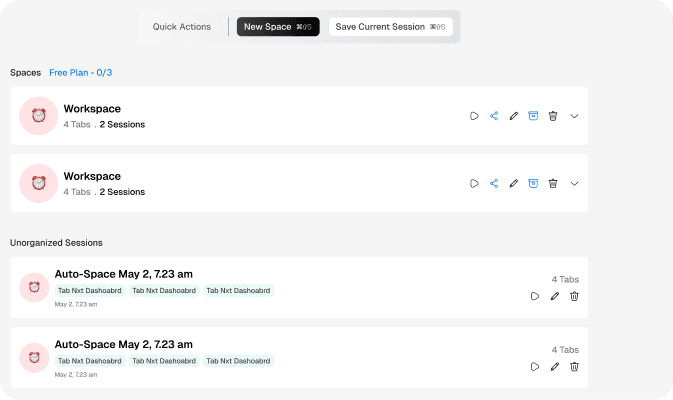
Tabnxt helps you save current browser sessions into custom Workspaces, keeping your projects segmented and completely safe.
How to Save Sessions and Manage Workspaces in Tabnxt
Tabnxt provides an intuitive, robust session manager built on Manifest V3. Here is how you can use it to safeguard your research:
- Save Current Session: Press the shortcut key ⌘ + 9S (or click the Tabnxt icon and click Save Session). This instantly takes a snapshot of all your open tabs, their groupings, and active states.
- Name Your Workspace: Give your snapshot a descriptive name, like "Q3 Marketing Campaign" or "Vacation Research". Tabnxt will save this under your Spaces list.
- Archive Finished Projects: Once a project is done, don't leave the tabs open. Archive the Space in Tabnxt. This closes all the tabs from your browser (saving valuable RAM) but keeps the session safely saved in your database if you ever need to refer to it again.
- Sync to the Cloud (Pro): Enable cloud sync to automatically back up your saved sessions. If your computer crashes or you get a new laptop, you can log into Tabnxt and restore your exact workspace in a single click.
3. Setting Up a Backup Schedule to Prevent Data Loss
A true "expert SEO artist" strategy for tab safety requires automated routines. Instead of manually saving sessions, you should rely on extensions that offer automated interval backups:
- Automated Snapshots: Tabnxt automatically takes a snapshot of your tabs every 15 minutes. This runs silently in the background, keeping a rolling log of your last 10 sessions. If Chrome crashes or your OS reboots for updates, you can restore your tabs exactly as they were 15 minutes ago.
- Tab Snoozing Integrations: If you have tabs that you don't need active during your current session but want to review later, you can snooze Chrome tabs. The tabs will automatically reappear at the scheduled time, keeping your active workspace decluttered.
- Export and Portability: Ensure your tool allows you to export your data. Tabnxt supports single-click JSON exports and direct imports from legacy tools like OneTab, ensuring you never lose your history when migrating.
Conclusion: Work with Peace of Mind
With an active session management system, you never have to worry about losing your tabs again. Instead of keeping 50 tabs open "just in case" you lose them, you can confidently close them, knowing they are saved securely in your Workspace manager for when you're ready to resume work.